How-to
Set up Resume Downloader
HRStop Hire's Resume Downloader lets recruiters download resumes from various job portals and sync them with their HRStop Hire portal.
To download and configure the Resume Downloader program:
- Download the file shared with you.
- If you have a ZIP file, unzip it. If you have an MSI file, install it on your system.
- Once you have unzipped the file, navigate to the folder and run "ResumeDownloader.exe".
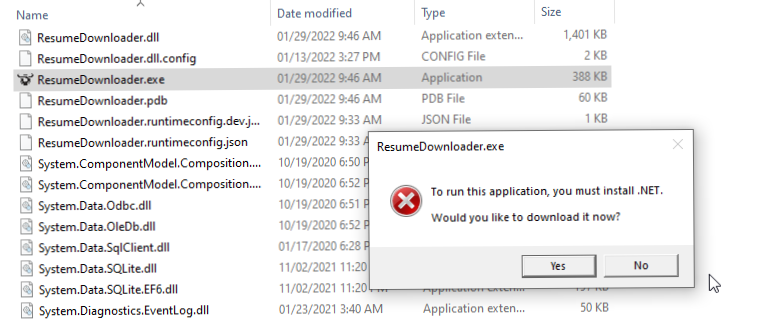
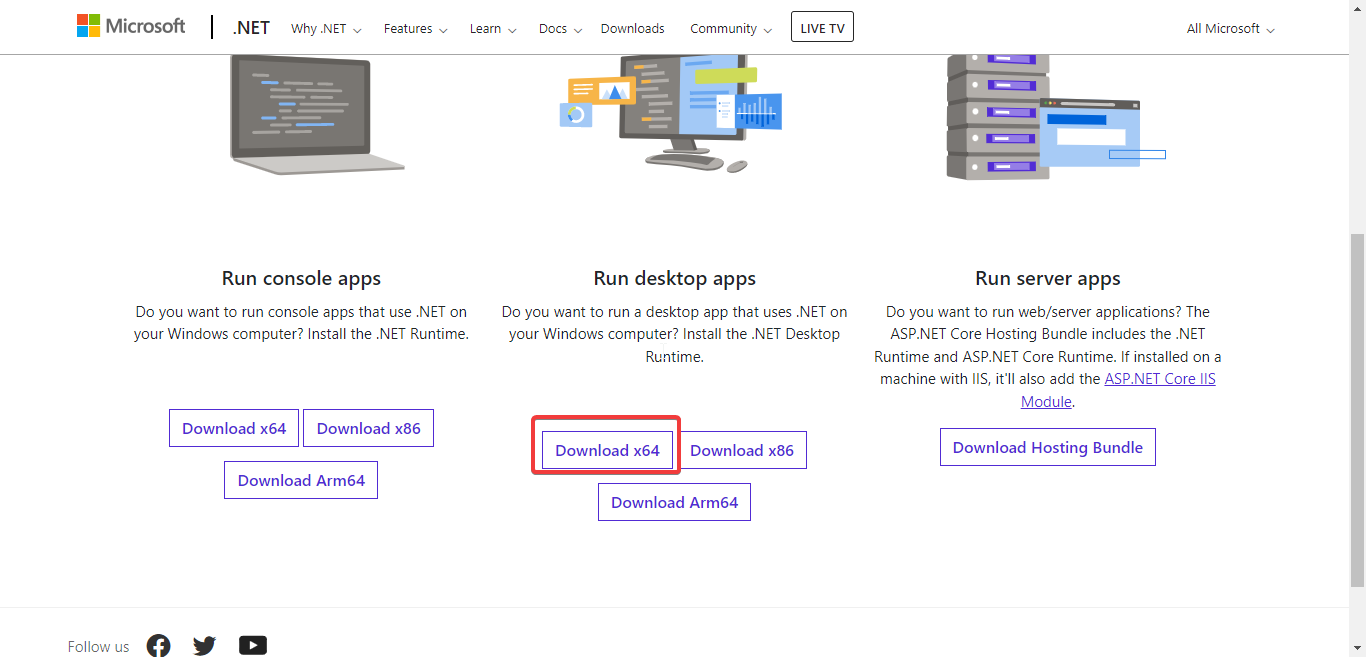
- If .NET is not installed on your system, you may be asked to download it. Click Yes to download it for Windows.
- Once done, navigate to the folder again and run "ResumeDownloader.exe".
- Log in to your HRStop Hire account using the Resume Downloader app. Navigate to the Login window (File → Login).
- Once you have logged in to HRStop Hire, configure the job boards.
- Navigate to the Configuration screen (Tools → Config).
- On the Configuration screen, select a job board and enter the credentials. Once you have authenticated, map the jobs from the job portal to your HRStop Hire jobs.
- Once the jobs are mapped, on the main screen, select the job portals from which you want to sync the resumes and click "Start Downloading". Once your resumes are downloaded, click "Start Synchronizing".
Troubleshooting
If you face issues syncing resumes with your HRStop Hire portal, share the logs and other required files with the support team. To navigate to the folder with the required files:
- Press
Win + Rto open the Run dialog. - Type the following:
%appdata%\HiringBull - A similar folder opens on your system. Share the Logs folder, or any other file the support team requests.