How-to
Add a document template
HRStop Hire lets you manage the document templates your company needs. These are usually common documents, such as offer letters and appointment letters, that the company frequently needs.
You can view, add and update your document template details.
Letters fall into the following categories:
- Letters without any formula
- Letters with formula
Letters without formulas
These include letters or documents such as an offer letter.
To add a document template:
- Navigate to Tools → Document Templates → +Add.
- Enter the Title of the template in the Title box.
- Enter the Description of the template in the description box.
- Open your document and prepare it according to the instructions on the Add page.
- Replace the relevant words in the DOCX file with the valid keys given in the instructions.
- For example, write "Dear Sam" as "Dear {{Employee.Name}}".
- Replace the relevant words in the DOCX file with the valid keys given in the instructions.
- Upload the document in the Upload File section and click Save.
- Scroll down and click Update.
Letters with formulas
These include letters or documents such as offer letters, appointment letters, etc.
To add a document template:
- Navigate to Tools → Document Templates → +Add.
- Enter the Title of the template in the Title box.
- Enter the Description of the template in the description box.
- Open your document and prepare it according to the instructions on the Add page.
- Replace the relevant words in the DOCX file with the valid keys given in the instructions.
- For example, write "Dear Sam" as "Dear {{Employee.Name}}".
- Replace the relevant words in the DOCX file with the valid keys given in the instructions.
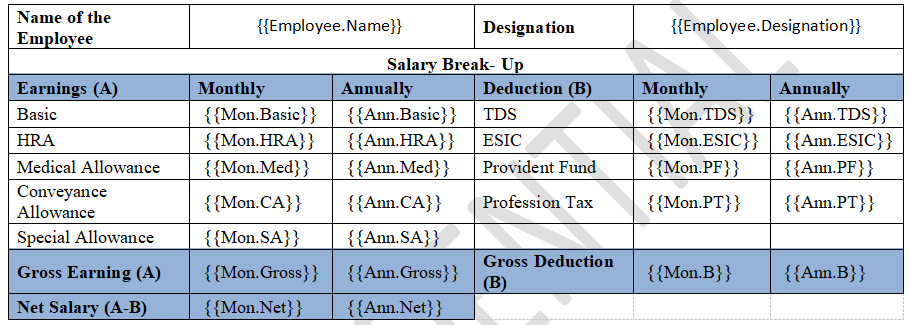
- For the CTC components, create your own custom keys, as shown in the sample screenshot below.
- Upload the document in the Upload File section and click Save.
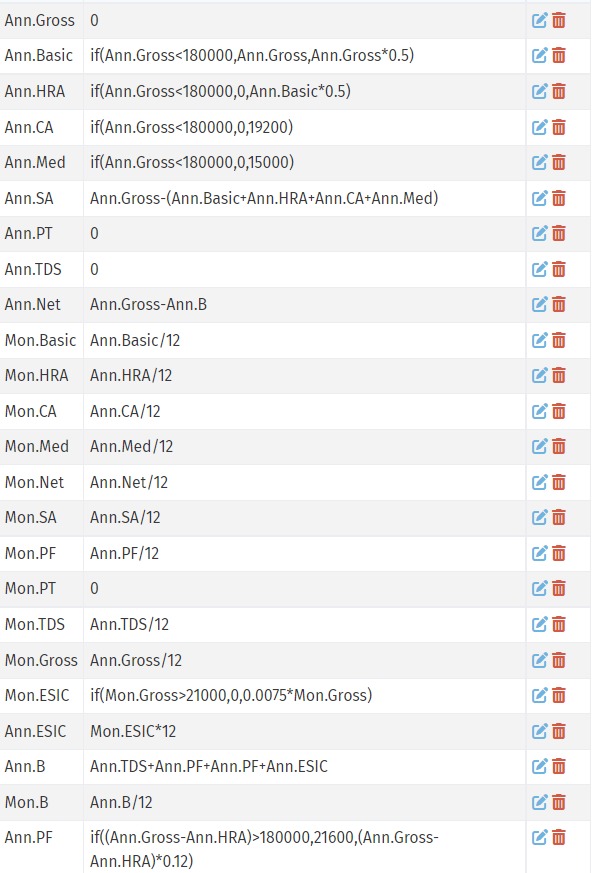
- Define the formulas for these keys in the Custom Key section, as shown in the sample below.
- Scroll down and click Update.
Note:
- Keep values that need to be entered manually, such as Gross, Professional Tax and Bonus, at zero so that you can edit them while generating the letter.
Frequently asked questions
What file types are supported for document uploads?
Candidates can upload the following file formats:
-
PDF (
.pdf) -
Images (
.jpg,.jpeg,.png) -
Word Docs (
.doc,.docx)
⚠️ Avoid large files or scanned images in TIFF/BMP formats, which are not supported.
Can I use dynamic placeholders in templates?
Yes. You can include placeholders such as:
-
{{candidate_name}} -
{{joining_date}} -
{{designation}}
These are auto-filled from the candidate profile during document generation.
Can I preview document templates before using them?
Yes. Go to Tools → Document Templates and click the Preview button next to any template.
This lets you see how the letter looks with sample data before generating it for real candidates.
Always preview after editing to ensure placeholders work correctly.
What is the maximum size of uploaded documents?
The default upload limit per file is 5MB–10MB, depending on your portal configuration.
Admins can contact support to increase this limit.
Ask candidates to compress scanned files before uploading.
What happens if a template placeholder is missing data?
If a placeholder (like {{joining_date}}) is not filled in the candidate profile:
- The field appears blank in the generated document.
- If marked mandatory, the system may prevent generation until it is filled.
Always verify candidate data before generating letters to avoid blanks.